
AI Design Tools in 2026: Workflow Tiers for Product Teams
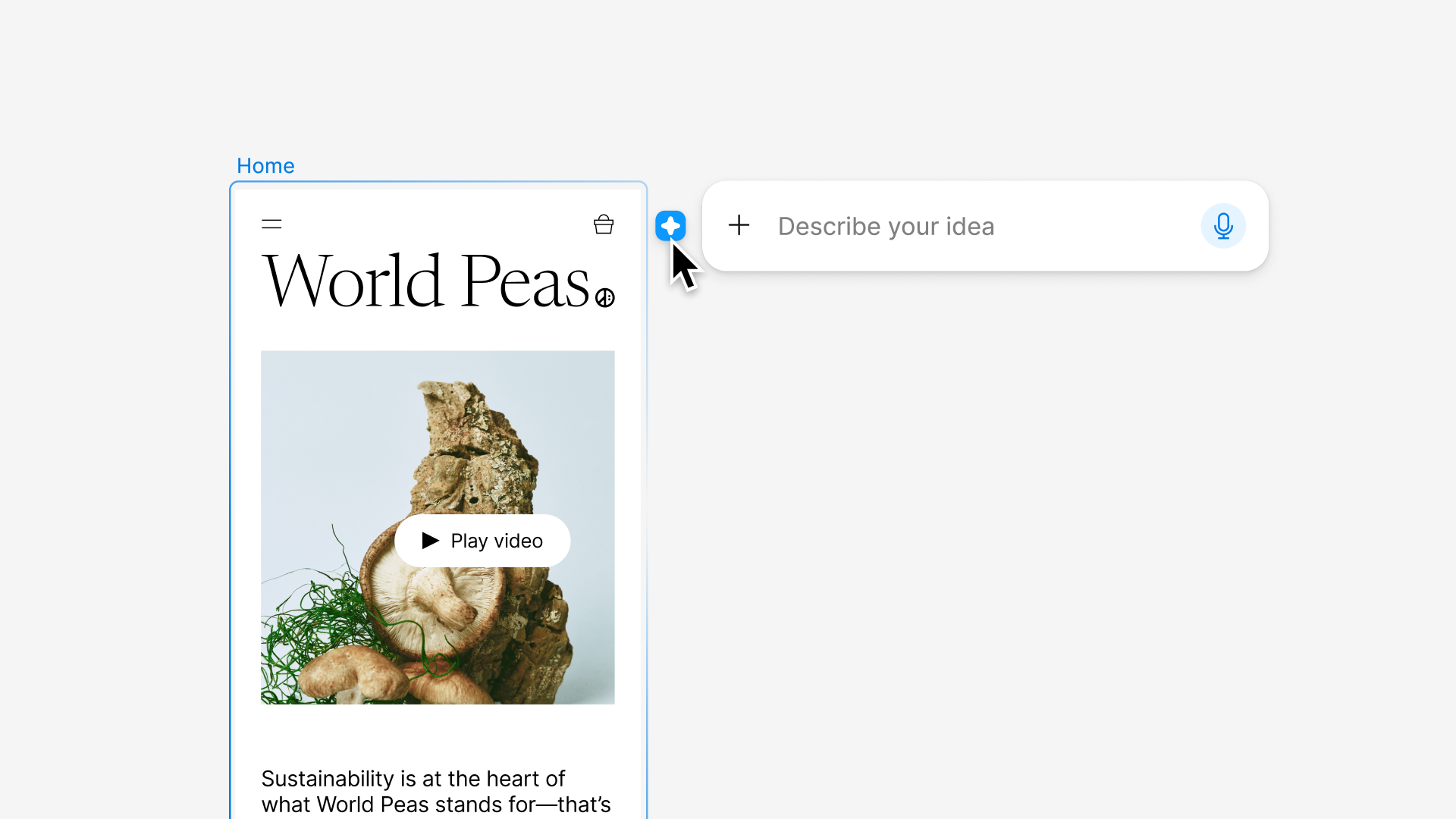
AI design tools in 2026 do different jobs. Some give a team a lasting place to design and review interfaces. Others help explore a concept, build a component, or turn an idea into working code. Choose based on where the finished work needs to live.
Workflow tiers for AI design tools in 2026
These editorial tiers focus on a product team building a multi-screen interface. Tier 1 tools have a documented path to an ongoing design workflow. Tier 2 tools accelerate a defined stage. Tier 3 tools have a different primary job or need more project-specific validation. The groupings use maker documentation available on October 12, 2026; they are not hands-on test results.
- Tier 1, workflow anchors: Figma, Paper, Magic Path.
- Tier 2, focused accelerators: Google Stitch, Pen, Subframe, Claude Design, UX Pilot.
- Tier 3, situational tools: v0, Open Design, Framer.
Tier 1: Workflow anchors
Figma
Figma’s October 2026 release notes say its design agent can use library context and search files. That gives teams with established components a practical place to try AI in a familiar design system. Figma is a workflow anchor when the design library is already the source of truth. Teams still need a clear path from approved designs to their production code.
Paper
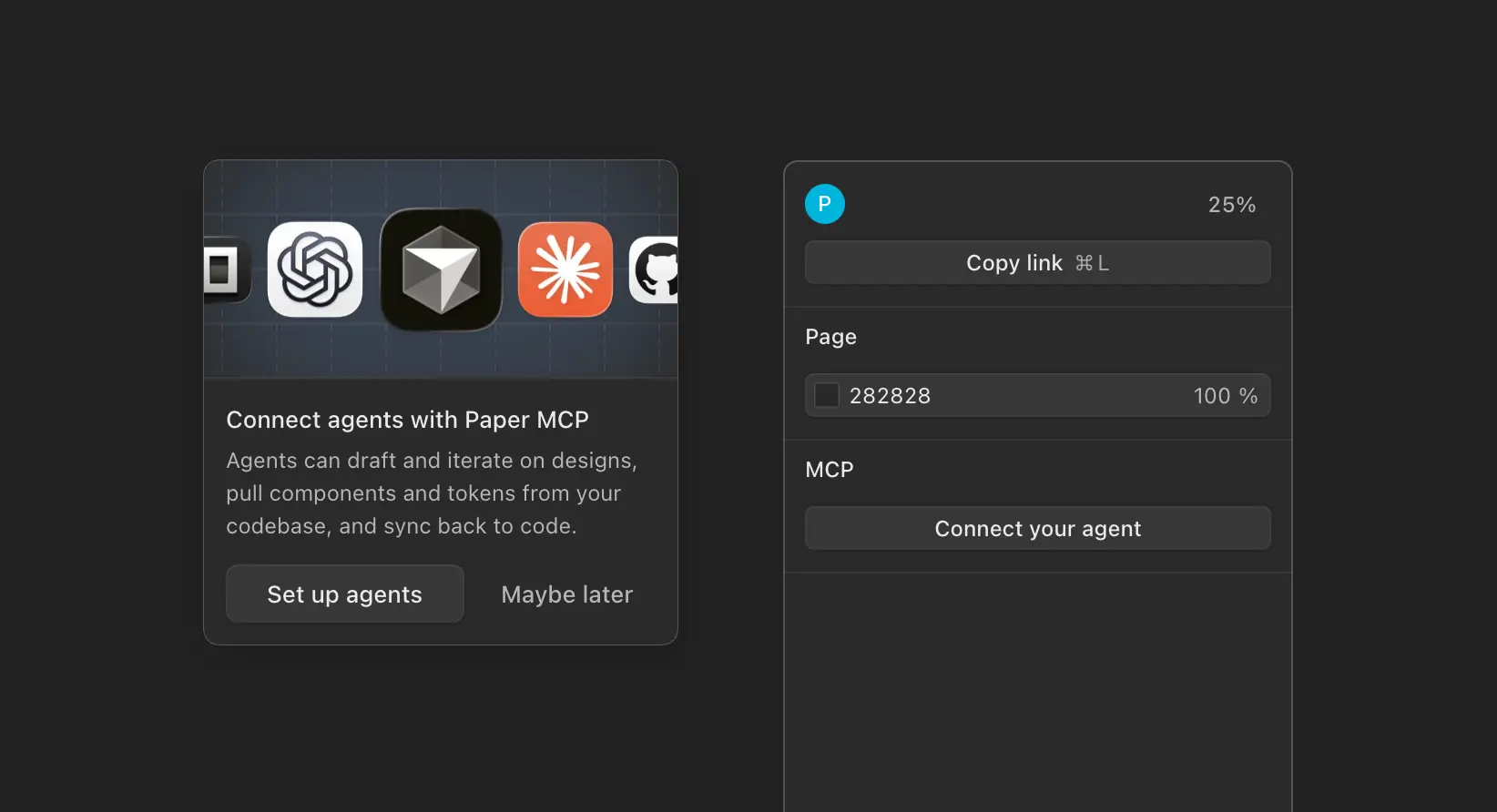
Paper builds its canvas on HTML and CSS, and its agent connection lets tools read and write design work. It fits teams that want visual editing close to implementation. Before making it a primary canvas, check how reusable components and design settings move between Paper and the project’s code.
Magic Path
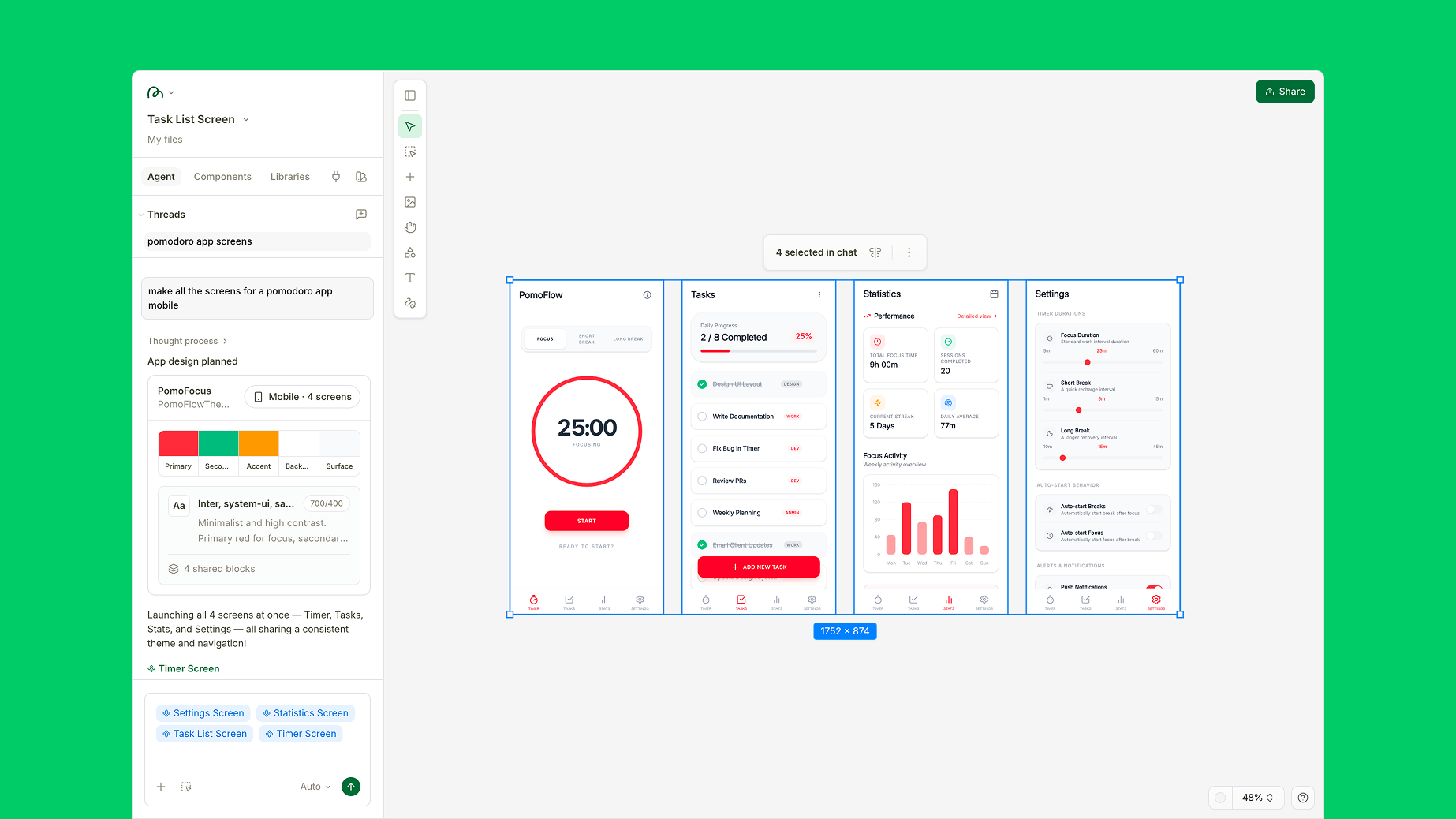
Magic Path documents a shared canvas, parallel agents, code export, and connections to coding tools. It also supports Figma imports. That combination makes it useful for teams exploring several directions while keeping a path back to code. Check exported component structure before treating a concept as production ready.
Tier 2: Focused accelerators
Google Stitch
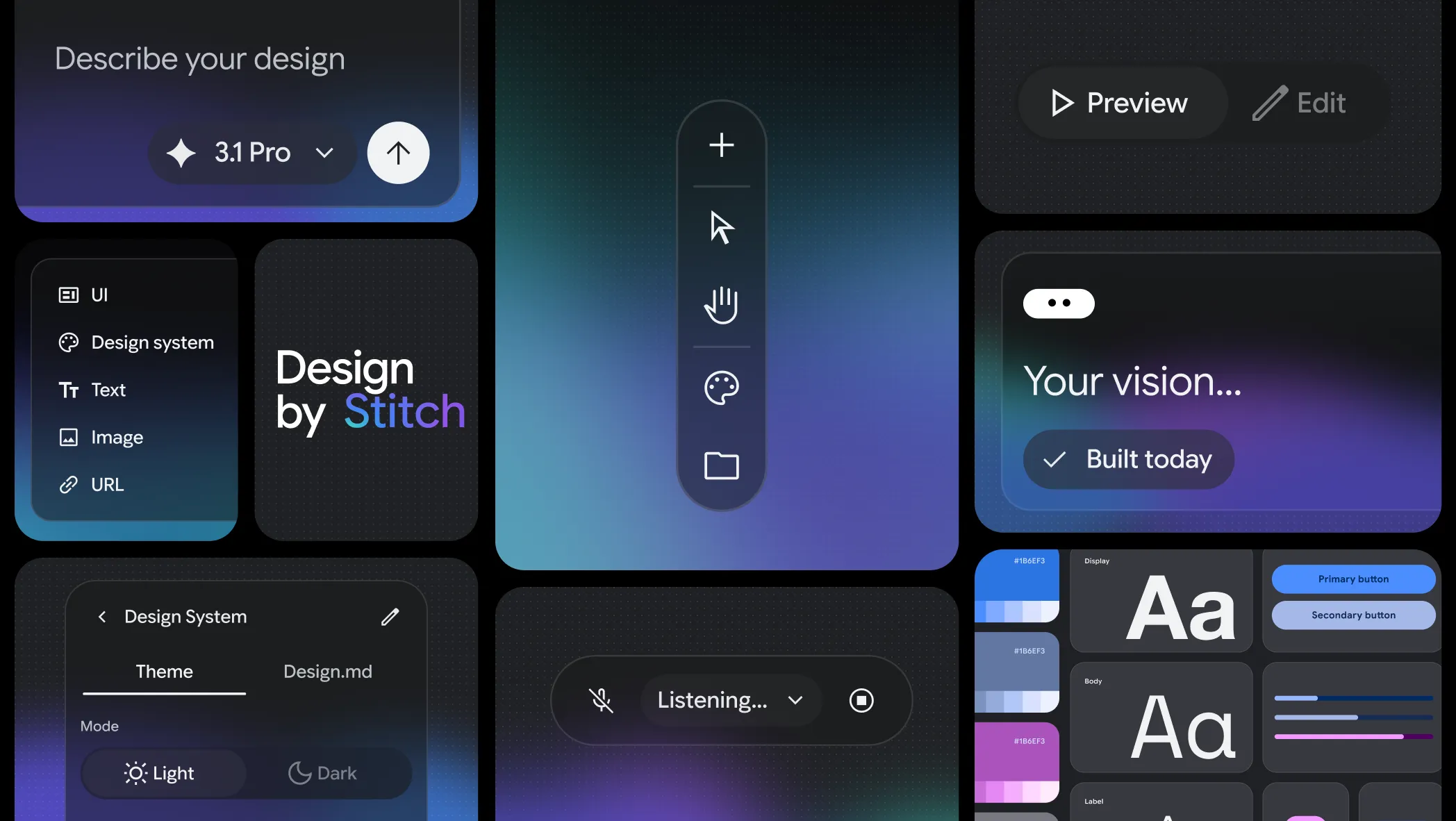
Google describes Stitch as a design agent that accepts prompts, voice, files, and code context. We would use it to explore screen directions quickly, then bring the chosen direction into the team’s normal design and review process. Its value is speed at the concept stage, while generated screens still need a check against existing patterns.
Pen
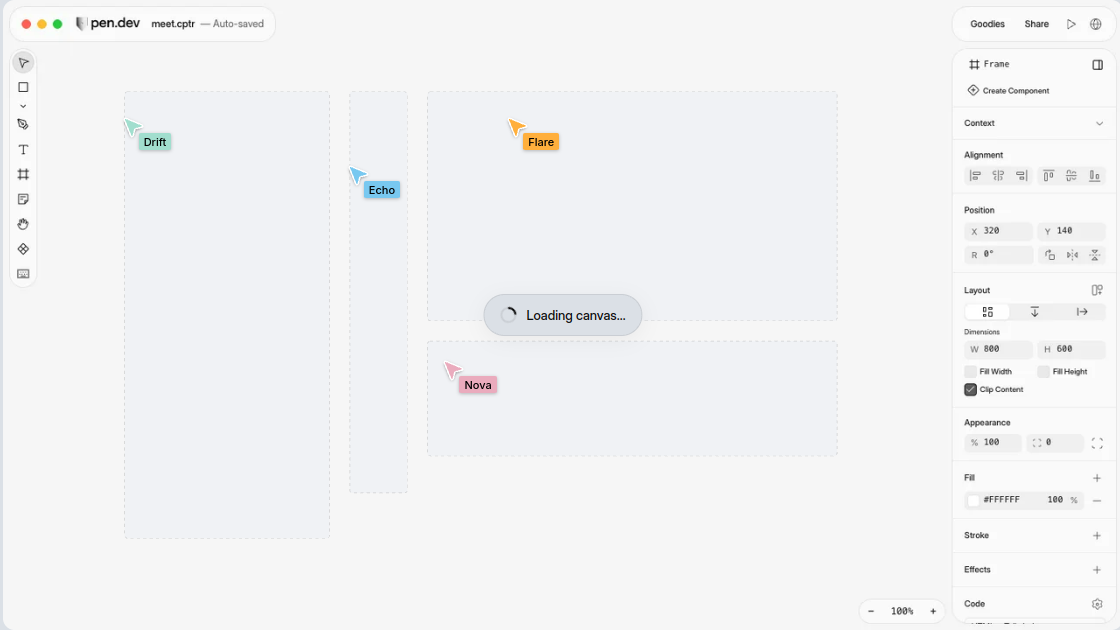
Pencil now points to Pen, whose agent documentation describes working with design files alongside project code. It is worth a look when designers and developers want to iterate on shared project assets. Confirm the current file format and collaboration model before migrating an established library.
Subframe
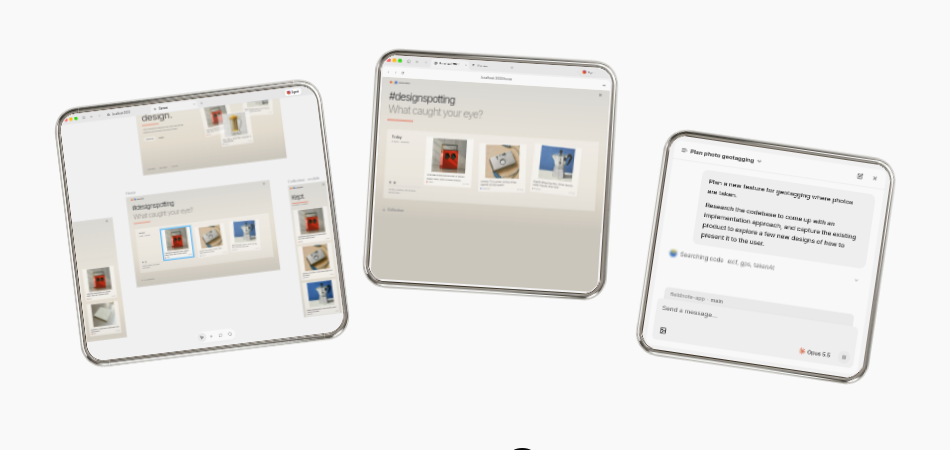
Subframe presents a canvas and coding agent built around a codebase. It is a focused option when the work centers on reusable interface parts. For a larger product, check how it handles navigation, screen states, and consistency across a multi-screen flow.
Claude Design
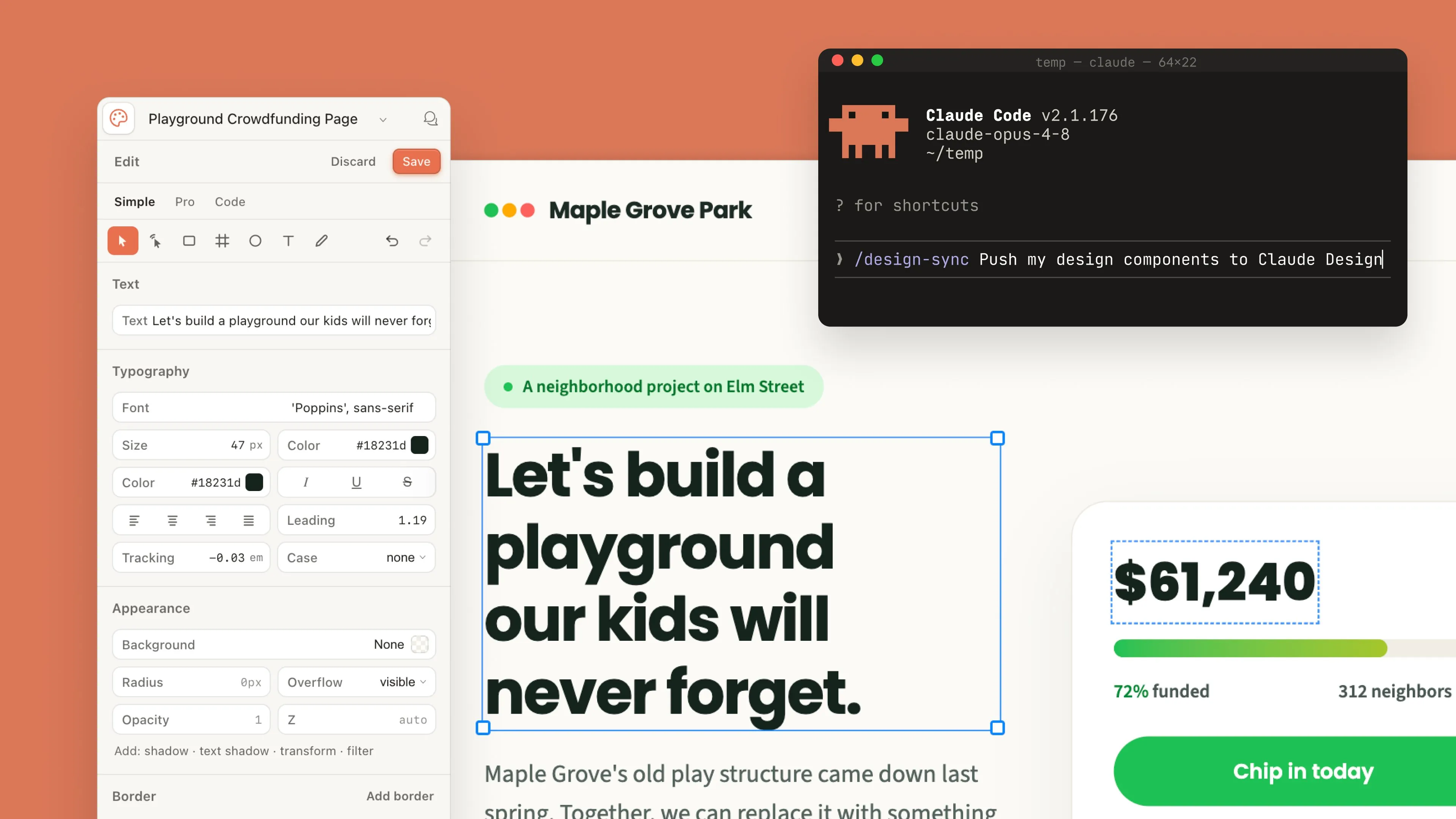
Anthropic’s current guide says Claude Design works in conversations, Artifacts, and Claude Code, with design system context and on-canvas editing. It is appealing for a visual draft while a brief is changing. For team adoption, check how a draft becomes an editable, reviewed part of the ongoing design system.
UX Pilot
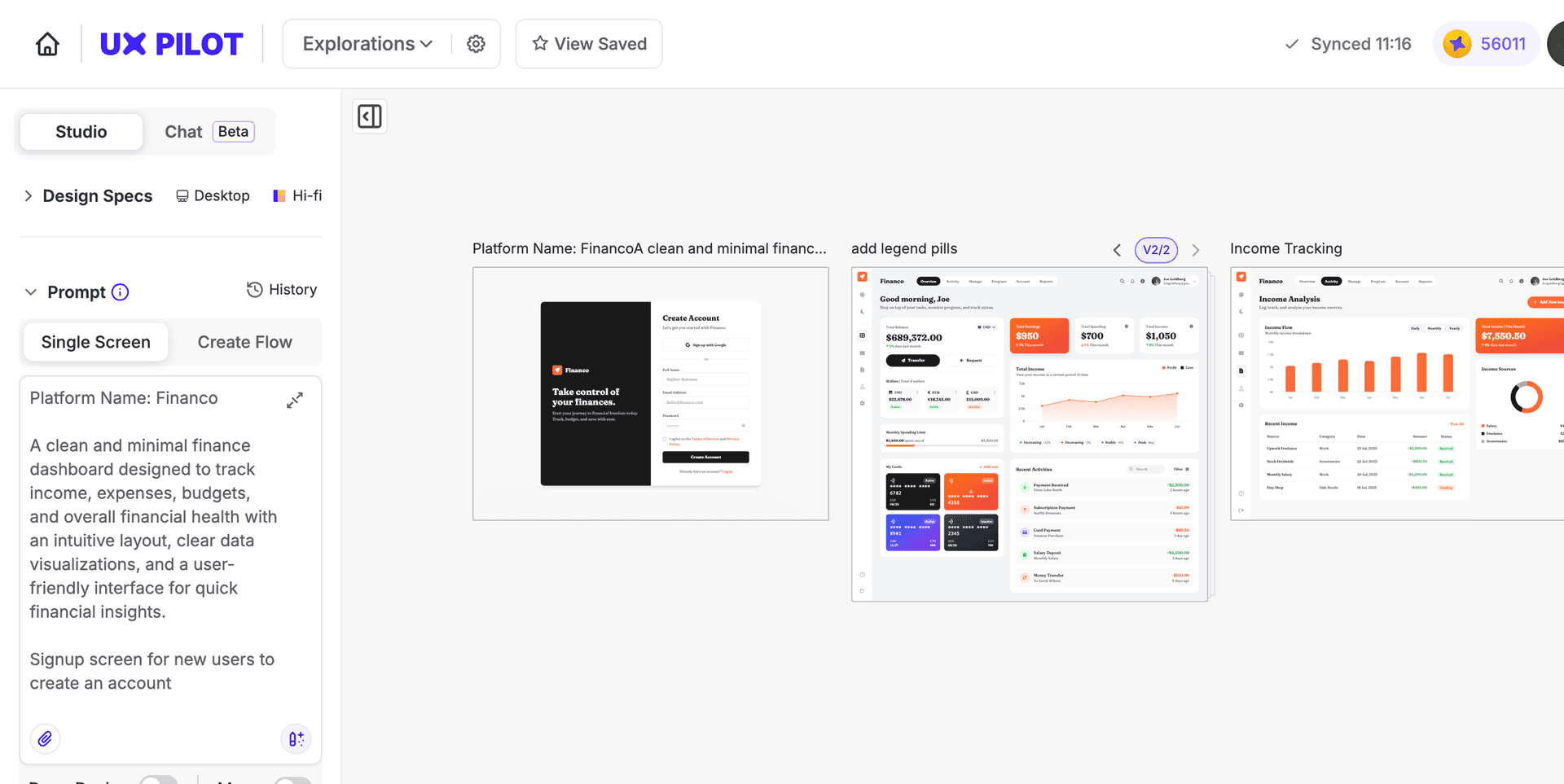
UX Pilot’s current site describes single screens, complete flows, wireframes, Figma export, code output, and GitHub sync. That breadth makes it a focused option for shaping a user journey and moving it forward. Review whether generated screens use the same components and interaction rules as the rest of the product.
Tier 3: Situational tools
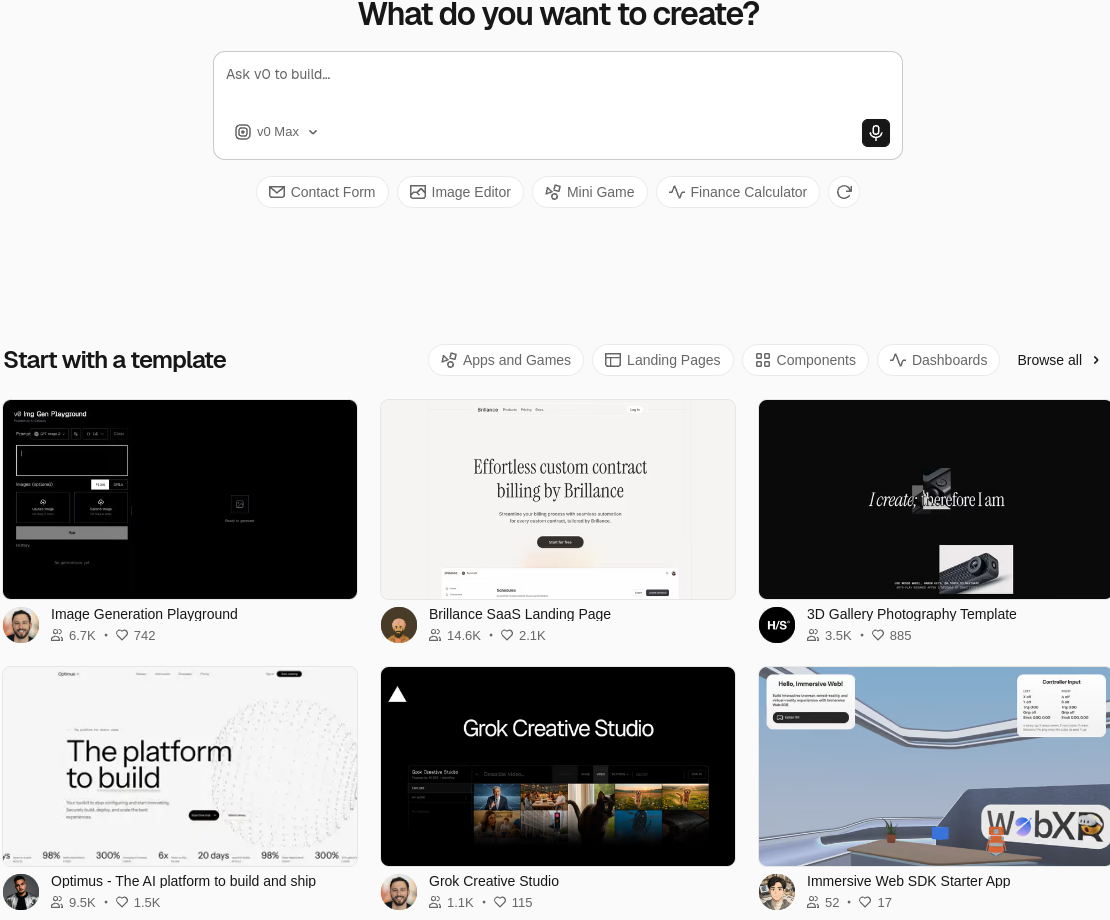
v0
Vercel positions v0 as an AI coding agent. Its primary deliverable is working code, which makes it a situational choice in a design canvas comparison. For a team ready to build, that can be a strength. Review the generated code, accessibility, and fit with existing components before it enters a product.
Open Design
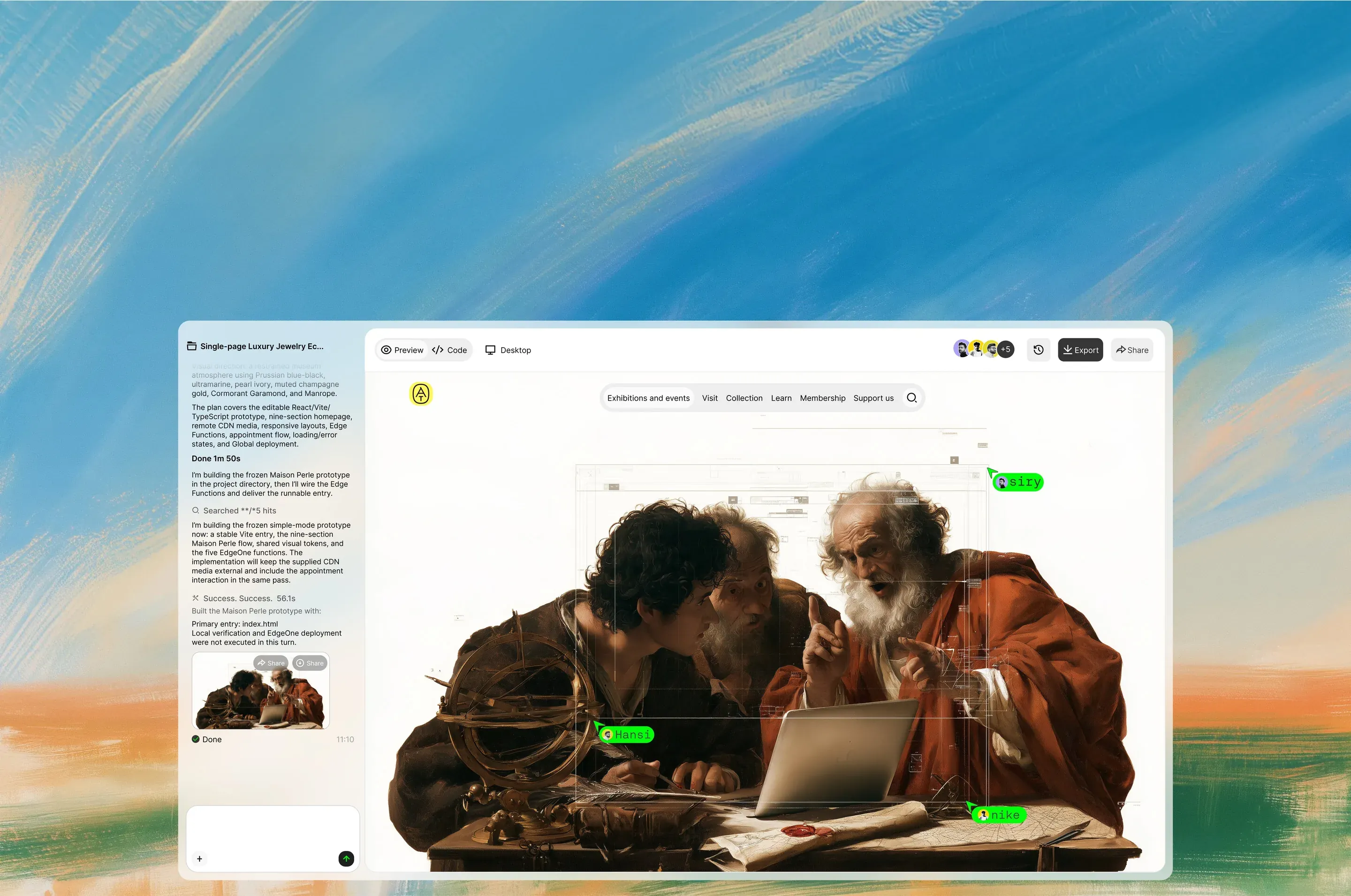
OpenDesign is an open-source, agent-native design workspace with a desktop app and design system options. It is worth investigating if your team values local tooling and the ability to inspect or adapt its workspace. We place it in this situational tier until its component workflow, team review, and file portability are tested against an actual project.
Framer
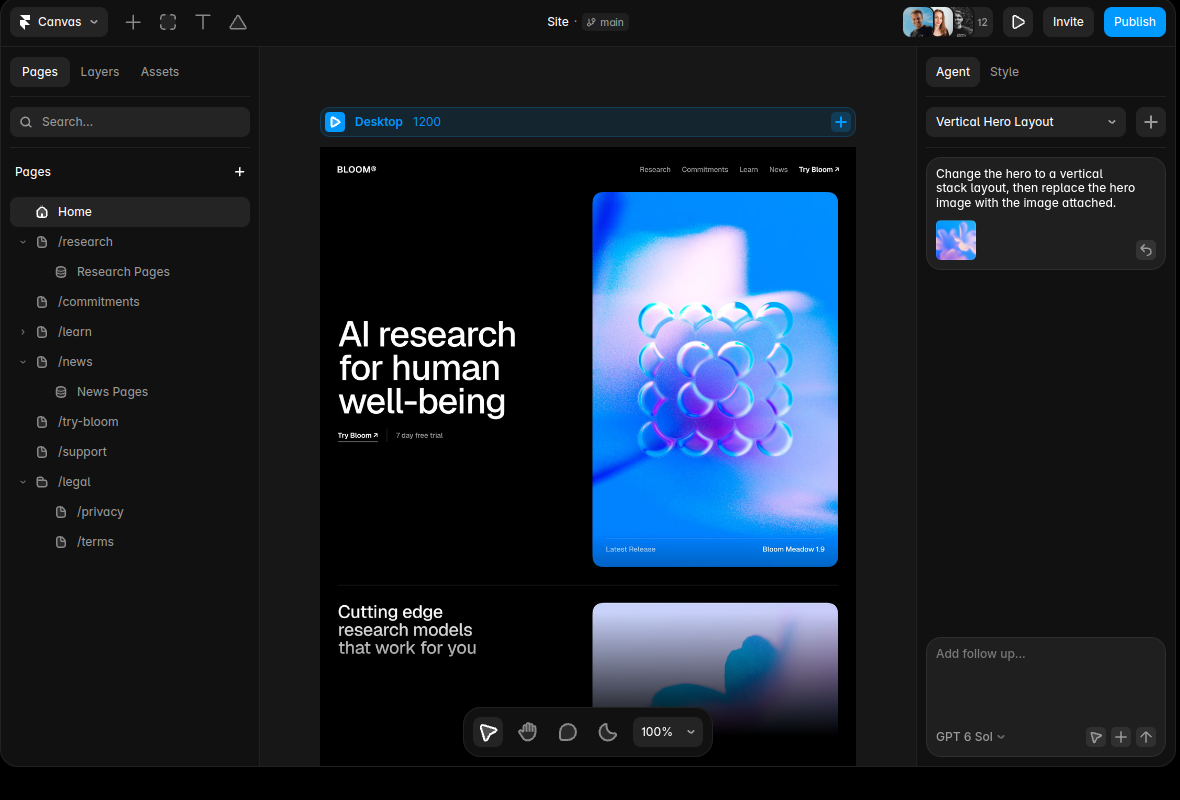
Framer centers on designing and publishing websites. We include it for teams whose deliverable is a site, while placing it in the situational tier for a product interface maintained in an existing codebase. Compare it on website projects and judge application design systems in their own workflow.
How to pick the right starting point
If your team already has a design library, start with Figma’s current agent and judge whether it improves your process. If code and visual work need a closer loop, compare Paper and Magic Path against one real screen. If the immediate need is exploration, use Stitch or Claude Design for concepts. If the deliverable is working UI code, assess v0 or Subframe in the actual project files.
Give each contender the same screen, content, component rules, and mobile requirement. Then change a real interaction and inspect what survives: editability, accessibility, responsive behavior, and code cleanup. That second pass tells you more than a polished first image. For teams planning a larger interface, our custom application work can connect design decisions to the product that ships.